 Days Left
You’d think this would be built in. Your iPhone can show the weather in Reykjavík, your screen time and the battery level of your earbuds, but it can’t tell you how many days are left until your holiday.
Here’s why the built-in apps can’t do it, and the quickest way to get a proper day countdown onto your Home Screen or Lock Screen.
Why the built-in apps don’t work for this
There are two obvious places to look, and neither one does the job.
- The Clock app’s timer tops out at 23 hours, 59 minutes and 59 seconds. It’s built for pasta, not for a trip in March.
- The Calendar widget shows what’s coming up, but it shows the date, not the gap. “Fri 25 Dec” doesn’t tell you much at a glance. “64 days” does.
So you need a countdown app that comes with a widget. I’ll use Days Left in the steps below because it’s the one I make, but the steps for adding a widget are the same for any app. (Days Left is on Google Play now, and the iPhone version is coming soon to the App Store.)
Step 1: add the event
Open Days Left, tap +, give the event a name and pick the date. If it’s a birthday or an anniversary, set it to repeat every year so the countdown resets itself the day after.
You can also pick an icon and a color while you’re there. It sounds like a small thing, but the widget is tiny and the icon is what your eye catches first.
Step 2: add the widget to your Home Screen
- Go to your Home Screen and touch and hold an empty spot until the apps start to jiggle.
- Tap Edit in the top-left corner, then Add Widget.
- Search for Days Left and tap it.
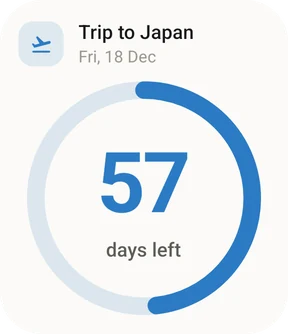
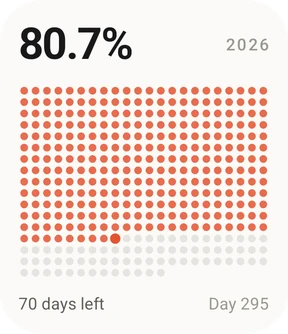
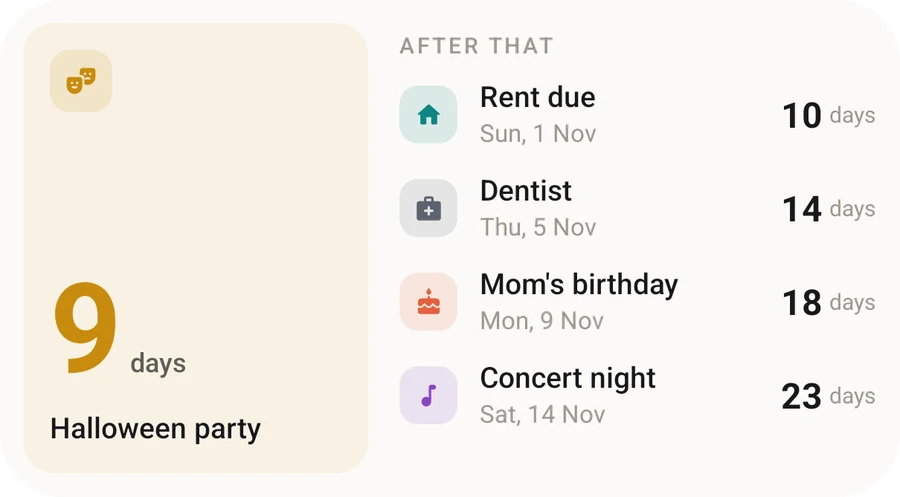
- Swipe through the options. Countdown is the small square with one big number. Up next is the wider one that lists your next few events. Year progress shows the whole year as dots.
- Tap Add Widget, drag it where you want it, and tap Done.
Step 3: choose which event the widget shows
This is the bit people miss. The Countdown widget shows your pinned event. If nothing is pinned, it shows whatever is coming up next.
That default is fine if you only have one thing on the horizon. Most people don’t. If you’ve got a dentist appointment on Tuesday and a wedding in June, you probably want the wedding on your Home Screen. Open the event in Days Left and pin it, and the widget switches over.
If you want to see several countdowns at once, use Up next instead of stacking lots of small widgets. Every small Countdown widget follows the same rule, so three of them would all show the same event.
Putting a countdown on your Lock Screen
Honestly, this is my favorite place for it. You look at your Lock Screen dozens of times a day without meaning to, and a small “57” next to the time is a nice thing to keep bumping into.
- Touch and hold the Lock Screen until it zooms out (you’ll need to unlock with Face ID first).
- Tap Customize, then choose Lock Screen.
- Tap the widget area below the clock and find Days Left. There’s a round countdown ring and a rectangular one that shows the event name too.
- For the one-line version, tap the date above the clock instead and choose Days Left there.
- Tap Done.
The Year progress widget works on the Lock Screen as well, if you like a quiet reminder of how much of the year is left. (I wrote more about that in how much of the year is left.)
A few tips that make it nicer
Use a Smart Stack if you’re short on space
Drag one widget on top of another widget of the same size and iOS stacks them. You swipe up and down to switch. If you want the countdown to stay on top, touch and hold the stack, tap Edit Stack and turn off Smart Rotate, otherwise iOS will shuffle it around when it thinks something else is more useful.
Put it on your first page
It sounds obvious, but a countdown you have to swipe to find stops being a countdown you notice. The first Home Screen page or the Lock Screen is where it earns its place.
Don’t worry about it updating
Days Left’s widget moves to the next number just after midnight by itself. You don’t need to open the app every day. If you’ve just added or changed an event, opening the app refreshes the widgets right away.
Counting down to something specific? I’ve written up a few ideas for making the wait before a trip part of the fun and a live Christmas countdown with a week-by-week plan.
What about Android?
It’s a slightly different process on Android, and in some ways easier. I’ve put the steps in a separate guide: how to add a countdown widget on Android.
Quick answers
Does the iPhone have a built-in countdown widget?
No. The Clock app's timer only goes up to 23 hours, 59 minutes and 59 seconds, and the Calendar widget lists upcoming events without counting the days. For a widget that says how many days are left, you need a countdown app such as Days Left.
Can I put a countdown on my iPhone Lock Screen?
Yes. Touch and hold the Lock Screen, tap Customize, then Lock Screen, and tap the widget area under the clock. Days Left has a round countdown, a rectangular countdown and a one-line version that sits next to the date.
Why isn't my countdown widget changing?
Days Left's widget moves to the next number just after midnight on its own. If it looks stuck, open the app once, which refreshes every widget straight away.
Does the countdown widget need an internet connection?
No. Days Left keeps your events on your iPhone and works fully offline, widgets included.